Sign into your Umbraco instance and navigate to the backoffice.In order to send data to Enterspeed, we need to install the Enterspeed Umbraco package. Go to the Packages tab in the top menu and search for “Enterspeed Umbraco source integration”. Select the package and hit install.
Since Umbraco 9 the “packages installation”-feature from the backoffice has been removed. Because of that, we need to install the following NuGet package:Enterspeed.Source.UmbracoCms
Insert your API key generated in the Enterspeed-app under “Sources”.
Test the connection and save the configuration afterward.
Your data will now be synced to Enterspeed each time you publish content.
You can view synced data in Enterspeed by navigating to Source Entities and selecting your source (the name you provided when creating it) in the Source dropdown.
Since Umbraco 9 the “packages installation”-feature from the backoffice has been removed. Because of that, we need to install our NuGet package:Enterspeed.Demos.UmbracoCms.FairyTalesThe NuGet package will import content, data types and document types required for this demo on startup of your application.After package installation build and start your application.
Publish the site by navigating to the Content tab, and select the Home node.Then click the arrow on the green “Save and Publish” button in the lower right corner, and select “Publish with descendants”.Check the “Include unpublished content items” option, and click the “Publish with descendants” button.This will publish the entire site, and send the data to Enterspeed.Go to your Enterspeed-project and navigate to Sources —> Sources entities to verify that the data have synced.
Go to the Content tab and click the three dots next to Home. Click the Do something else button at the bottom and select Culture and Hostnames.Insert the same domain name as the one you entered when you configured your hostname in Enterspeed.
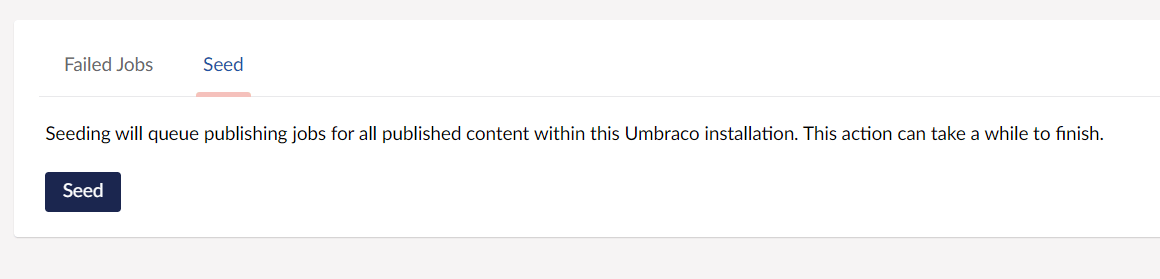
When you click Save and publish in Umbraco, the content will automatically be sent to Enterspeed. But since we just updated our hostname, all of our content now has a new URL, which we need to be synced to Enterspeed. We do this by manually triggering an update.To send content manually to Enterspeed go to the Content tab in the top menu. Click the Enterspeed content tab and select Seed.To send published content to Enterspeed, click the Seed button. This will queue a transfer of all your Umbraco content to Enterspeed.
{"docsConfig":{"theme":"mint","$schema":"https://mintlify.com/docs.json","name":"Enterspeed Docs","colors":{"primary":"#0018ff","light":"#99bfdd","dark":"#000035"},"logo":{"light":"https://mintcdn.com/enterspeed/epLxx3NKRbzcMz_w/images/Enterspeed_Logo_RGB_Black.svg?fit=max\u0026auto=format\u0026n=epLxx3NKRbzcMz_w\u0026q=85\u0026s=491f6b7030bd2783bc3e51bb7183237e","dark":"https://mintcdn.com/enterspeed/ZSYX286dEXJYPh8A/images/Enterspeed_Logo_RGB_DIAP.svg?fit=max\u0026auto=format\u0026n=ZSYX286dEXJYPh8A\u0026q=85\u0026s=57859398954b59778cd723e0b9e4dca5"},"favicon":{"light":"https://mintcdn.com/enterspeed/epLxx3NKRbzcMz_w/images/favicon.svg?fit=max\u0026auto=format\u0026n=epLxx3NKRbzcMz_w\u0026q=85\u0026s=2e00ec680e7f80f676f9d4748626ec0f","dark":"https://mintcdn.com/enterspeed/epLxx3NKRbzcMz_w/images/favicon.svg?fit=max\u0026auto=format\u0026n=epLxx3NKRbzcMz_w\u0026q=85\u0026s=2e00ec680e7f80f676f9d4748626ec0f"},"background":{"decoration":"grid"},"navbar":{"links":[{"href":"https://www.enterspeedstatus.com/","label":"Status"}]},"footer":{"socials":{"github":"https://github.com/enterspeedhq","linkedin":"https://www.linkedin.com/company/enterspeed","website":"https://www.enterspeed.com/","youtube":"https://www.youtube.com/@enterspeedhq"},"links":[{"header":"Company","items":[{"label":"Enterspeed","href":"https://www.enterspeed.com"},{"label":"Contact Us","href":"https://www.enterspeed.com/contact"},{"label":"Privacy Policy","href":"https://www.enterspeed.com/privacy-policy"}]},{"header":"Resources","items":[{"label":"Blog","href":"https://www.enterspeed.com/blog"},{"label":"Product Updates","href":"https://updates.enterspeed.com/"},{"label":"Newsletter Signup","href":"https://content.enterspeed.com/newsletter-signup"},{"label":"Privacy Policy","href":"https://www.enterspeed.com/privacy-policy"}]}]},"search":{"prompt":"Search docs"},"icons":{"library":"fontawesome"},"styling":{"eyebrows":"breadcrumbs","latex":false},"integrations":{"gtm":{"tagId":"GTM-N32R9R7"},"mixpanel":{"projectToken":"efb544fc5e5319cb4a082b0154e14df2","region":"eu"}},"contextual":{"options":["copy","view","chatgpt","claude","perplexity","mcp","cursor","vscode","download-spec"],"display":"header"},"interaction":{"drilldown":false},"navigation":{"pages":[]}},"deployment":{"deploymentMetadataValue":{"subdomain":"enterspeed","hasAudioNarration":false,"actualSubdomain":"enterspeed","customDomains":["docs.enterspeed.com"],"gitSource":{"type":"github","owner":"enterspeedhq","repo":"enterspeed-docs","deployBranch":"master","contentDirectory":"","isPrivate":false,"mountPath":"","label":""},"chroma":{"collectionId":"528dd4a1-f406-4d8f-a3a1-420ea5af8b77","liveDeploymentHistoryId":"6ae9c20c98ee2cfbfea836ef","schemaVersion":"v3","latestBuiltDeploymentHistoryId":"6ae9c20c98ee2cfbfea836ef"},"feedback":{"thumbs":true,"edits":true,"issues":true},"entitlements":{"AI_CHAT":{"status":"DISABLED"}},"buildId":"6ae9c20c98ee2cfbfea836ef","clientVersion":"0.0.4067","searchFilterCounts":[{"language":"default","tag":"Enterspeed","count":136},{"language":"default","tag":"Overview","count":46},{"language":"default","tag":"Integrations","count":43},{"language":"default","tag":"Source integrations","count":30},{"language":"default","tag":"Speedtrain","count":29},{"language":"default","tag":"Key concepts","count":23},{"language":"default","tag":"Umbraco","count":21},{"language":"default","tag":"Tutorials","count":20},{"language":"default","tag":"Schema reference","count":19},{"language":"default","tag":"Getting started","count":16}]},"assistantConfig":{"enableAskAiButton":false,"enableStarterQuestions":false,"enableContextualStarterQuestions":false,"enableAskAiSearchBar":true},"basePath":"","hasChatPermissions":false,"hasWebMcpPermissions":false,"toggles":[{"name":"kill-isr","enabled":true,"variant":{"name":"disabled","enabled":false,"feature_enabled":true},"impressionData":false},{"name":"agent-mintlify-slack","enabled":true,"variant":{"name":"disabled","enabled":false,"feature_enabled":true},"impressionData":false},{"name":"agent-integrations-settings","enabled":true,"variant":{"name":"disabled","enabled":false,"feature_enabled":true},"impressionData":false},{"name":"rbac-expansion","enabled":true,"variant":{"name":"disabled","enabled":false,"feature_enabled":true},"impressionData":false},{"name":"automations-pr-grouping","enabled":true,"variant":{"name":"disabled","enabled":false,"feature_enabled":true},"impressionData":false},{"name":"custom-prefix","enabled":true,"variant":{"name":"disabled","enabled":false,"feature_enabled":true},"impressionData":false},{"name":"analytics-v7","enabled":true,"variant":{"name":"disabled","enabled":false,"feature_enabled":true},"impressionData":false},{"name":"user-flows-analytics","enabled":true,"variant":{"name":"disabled","enabled":false,"feature_enabled":true},"impressionData":false},{"name":"no-publish-flow","enabled":true,"variant":{"name":"disabled","enabled":false,"feature_enabled":true},"impressionData":false},{"name":"workos-onboarding","enabled":true,"variant":{"name":"disabled","enabled":false,"feature_enabled":true},"impressionData":false},{"name":"llms-txt-v2","enabled":true,"variant":{"name":"disabled","enabled":false,"feature_enabled":true},"impressionData":false},{"name":"snapshot-serving-live","enabled":true,"variant":{"name":"disabled","enabled":false,"feature_enabled":true},"impressionData":false},{"name":"stripTemperatureMiddleware","enabled":true,"variant":{"name":"disabled","enabled":false,"feature_enabled":true},"impressionData":false},{"name":"support-platform-pylon-zendesk","enabled":true,"variant":{"name":"disabled","enabled":false,"feature_enabled":true},"impressionData":false},{"name":"snapshot-serving","enabled":true,"variant":{"name":"disabled","enabled":false,"feature_enabled":true},"impressionData":false},{"name":"instant-rollback","enabled":true,"variant":{"name":"disabled","enabled":false,"feature_enabled":true},"impressionData":false},{"name":"granular-notifications-server","enabled":true,"variant":{"name":"disabled","enabled":false,"feature_enabled":true},"impressionData":false},{"name":"granular-notifications","enabled":true,"variant":{"name":"disabled","enabled":false,"feature_enabled":true},"impressionData":false},{"name":"automations-fable","enabled":true,"variant":{"name":"disabled","enabled":false,"feature_enabled":true},"impressionData":false},{"name":"fixed-ai-action-pricing","enabled":true,"variant":{"name":"disabled","enabled":false,"feature_enabled":true},"impressionData":false},{"name":"automation-resolve-merge-conflict","enabled":true,"variant":{"name":"disabled","enabled":false,"feature_enabled":true},"impressionData":false},{"name":"scoped-publishing","enabled":true,"variant":{"name":"disabled","enabled":false,"feature_enabled":true},"impressionData":false},{"name":"mintql","enabled":true,"variant":{"name":"disabled","enabled":false,"feature_enabled":true},"impressionData":false},{"name":"page-level-analytics","enabled":true,"variant":{"name":"disabled","enabled":false,"feature_enabled":true},"impressionData":false},{"name":"editor-version-history-v2","enabled":true,"variant":{"name":"disabled","enabled":false,"feature_enabled":true},"impressionData":false},{"name":"billing-page-v2","enabled":true,"variant":{"name":"disabled","enabled":false,"feature_enabled":true},"impressionData":false},{"name":"full-page-search","enabled":true,"variant":{"name":"disabled","enabled":false,"feature_enabled":true},"impressionData":false},{"name":"workspace-projects","enabled":true,"variant":{"name":"disabled","enabled":false,"feature_enabled":true},"impressionData":false},{"name":"assistant-v5","enabled":true,"variant":{"name":"disabled","enabled":false,"feature_enabled":true},"impressionData":false},{"name":"fork-pr-previews","enabled":true,"variant":{"name":"disabled","enabled":false,"feature_enabled":true},"impressionData":false},{"name":"revalidation-jwt","enabled":true,"variant":{"name":"disabled","enabled":false,"feature_enabled":true},"impressionData":false},{"name":"vite-origin","enabled":true,"variant":{"name":"disabled","enabled":false,"feature_enabled":true},"impressionData":false},{"name":"workos-sso-scim","enabled":true,"variant":{"name":"disabled","enabled":false,"feature_enabled":true},"impressionData":false},{"name":"hobby-abuse-scan","enabled":true,"variant":{"name":"disabled","enabled":false,"feature_enabled":true},"impressionData":false},{"name":"dashboard-inbox","enabled":true,"variant":{"name":"disabled","enabled":false,"feature_enabled":true},"impressionData":false},{"name":"workos-signup","enabled":true,"variant":{"name":"disabled","enabled":false,"feature_enabled":true},"impressionData":false},{"name":"turbopuffer-dual-write","enabled":true,"variant":{"name":"disabled","enabled":false,"feature_enabled":true},"impressionData":false},{"name":"workos-enabled","enabled":true,"variant":{"name":"disabled","enabled":false,"feature_enabled":true},"impressionData":false},{"name":"approve-review-flow","enabled":true,"variant":{"name":"disabled","enabled":false,"feature_enabled":true},"impressionData":false},{"name":"sso-setup-deadline-banner","enabled":true,"variant":{"name":"disabled","enabled":false,"feature_enabled":true},"impressionData":false},{"name":"turbopuffer-serve","enabled":true,"variant":{"name":"disabled","enabled":false,"feature_enabled":true},"impressionData":false}],"privacy":{"consentBanner":{"enabled":false}},"googleFontsInlined":false},"customCss":[{"filePath":"style.css","content":".integration-logos .card img{background-color:#f0f3f7;border-radius:0.5rem;padding:0.75rem;box-sizing:border-box}.dark .integration-logos .card img{background-color:#000035}"}],"page":{"pagePath":"enterspeed/tutorials/umbraco-nextjs/2-configuring-umbraco","slug":"/enterspeed/tutorials/umbraco-nextjs/2-configuring-umbraco","pageMetadata":{"title":"2. Configuring Umbraco","description":null,"href":"/enterspeed/tutorials/umbraco-nextjs/2-configuring-umbraco"},"pageType":"default","mdx":{"mdxSource":{"compiledSource":"\"use strict\";const{Fragment:_Fragment,jsx:_jsx,jsxs:_jsxs}=arguments[0];const{useMDXComponents:_provideComponents}=arguments[0];function _createMdxContent(props){const _components={a:`a`,li:`li`,ol:`ol`,p:`p`,strong:`strong`,..._provideComponents(),...props.components},{Heading,OptimizedImage,Tip,Warning}=_components;if(!Heading)_missingMdxReference(`Heading`,true);if(!OptimizedImage)_missingMdxReference(`OptimizedImage`,true);if(!Tip)_missingMdxReference(`Tip`,true);if(!Warning)_missingMdxReference(`Warning`,true);return _jsxs(_Fragment,{children:[_jsx(Heading,{level:`1`,id:`configuring-umbraco`,children:`Configuring Umbraco`}),`\n`,_jsx(_components.p,{children:`In this step, we’re going to:`}),`\n`,_jsxs(_components.ol,{children:[`\n`,_jsx(_components.li,{children:`Install the Enterspeed Umbraco package`}),`\n`,_jsx(_components.li,{children:`Import our demo content`}),`\n`,_jsx(_components.li,{children:`Configure our hostname`}),`\n`,_jsx(_components.li,{children:`Seed content to Enterspeed manually`}),`\n`]}),`\n`,_jsx(Heading,{level:`2`,id:`installation`,children:`Installation`}),`\n`,_jsx(Heading,{level:`3`,id:`installation-for-umbraco-7-\u0026-8`,children:`Installation for Umbraco 7 \u0026 8`}),`\n`,_jsx(_components.p,{children:`Sign into your Umbraco instance and navigate to the backoffice.`}),`\n`,_jsxs(_components.p,{children:[`In order to send data to Enterspeed, we need to install the Enterspeed Umbraco package. Go to the `,_jsx(_components.strong,{children:`Packages`}),` tab in the top menu and search for `,_jsx(_components.strong,{children:`“Enterspeed Umbraco source integration”`}),`. Select the package and hit install.`]}),`\n`,_jsx(Warning,{children:_jsxs(_components.p,{children:[`For production setups, we recommend installing the NuGet package instead. You can find it here: `,_jsx(_components.a,{href:`https://www.nuget.org/packages/Enterspeed.Source.UmbracoCms.V7/`,children:`Enterspeed.Source.UmbracoCms.V7`}),` or `,_jsx(_components.a,{href:`https://www.nuget.org/packages/Enterspeed.Source.UmbracoCms.V8/`,children:`Enterspeed.Source.UmbracoCms.V8`})]})}),`\n`,_jsx(Heading,{level:`3`,id:`installation-for-umbraco-9+`,children:`Installation for Umbraco 9+`}),`\n`,_jsx(_components.p,{children:`Since Umbraco 9 the “packages installation”-feature from the backoffice has been removed. Because of that, we need to install the following NuGet package:`}),`\n`,_jsx(_components.p,{children:_jsx(_components.a,{href:`https://www.nuget.org/packages/Enterspeed.Source.UmbracoCms/`,children:`Enterspeed.Source.UmbracoCms`})}),`\n`,_jsx(Heading,{level:`2`,id:`configuring`,children:`Configuring`}),`\n`,_jsxs(_components.p,{children:[`Go to the `,_jsx(_components.strong,{children:`Settings`}),` tab in the top menu and select `,_jsx(_components.strong,{children:`Enterspeed settings`}),`.`]}),`\n`,_jsx(OptimizedImage,{src:`https://mintcdn.com/enterspeed/U-p4hKh6hit1rd09/images/docs/examples/umbraco-enterspeed-config.png?fit=max\u0026auto=format\u0026n=U-p4hKh6hit1rd09\u0026q=85\u0026s=10f3c8bbe198d4d3dc69e53de40b3cde`,alt:`Umbraco Enterspeed Config`,\"data-og-width\":`975`,width:`975`,\"data-og-height\":`466`,height:`466`,\"data-path\":`images/docs/examples/umbraco-enterspeed-config.png`,\"data-optimize\":`true`,\"data-opv\":`3`,srcset:`https://mintcdn.com/enterspeed/U-p4hKh6hit1rd09/images/docs/examples/umbraco-enterspeed-config.png?w=280\u0026fit=max\u0026auto=format\u0026n=U-p4hKh6hit1rd09\u0026q=85\u0026s=b0319881f86f620aa698da68c04ceaaf 280w, https://mintcdn.com/enterspeed/U-p4hKh6hit1rd09/images/docs/examples/umbraco-enterspeed-config.png?w=560\u0026fit=max\u0026auto=format\u0026n=U-p4hKh6hit1rd09\u0026q=85\u0026s=3021e050d5c3edf0b34d2f528c27e855 560w, https://mintcdn.com/enterspeed/U-p4hKh6hit1rd09/images/docs/examples/umbraco-enterspeed-config.png?w=840\u0026fit=max\u0026auto=format\u0026n=U-p4hKh6hit1rd09\u0026q=85\u0026s=d8635e0e0d8342c880fc3a20b506823d 840w, https://mintcdn.com/enterspeed/U-p4hKh6hit1rd09/images/docs/examples/umbraco-enterspeed-config.png?w=1100\u0026fit=max\u0026auto=format\u0026n=U-p4hKh6hit1rd09\u0026q=85\u0026s=f65899fa4be7afbb1df4606e51a9c4b8 1100w, https://mintcdn.com/enterspeed/U-p4hKh6hit1rd09/images/docs/examples/umbraco-enterspeed-config.png?w=1650\u0026fit=max\u0026auto=format\u0026n=U-p4hKh6hit1rd09\u0026q=85\u0026s=27fa6759037311e74136600276cecd51 1650w, https://mintcdn.com/enterspeed/U-p4hKh6hit1rd09/images/docs/examples/umbraco-enterspeed-config.png?w=2500\u0026fit=max\u0026auto=format\u0026n=U-p4hKh6hit1rd09\u0026q=85\u0026s=2e10fd945cc806b9716bae8fb6c4eed9 2500w`}),`\n`,_jsxs(_components.ol,{children:[`\n`,_jsxs(_components.li,{children:[`\n`,_jsxs(_components.p,{children:[`Set the `,_jsx(_components.strong,{children:`Enterspeed endpoint`}),` to `,_jsx(_components.a,{href:`https://api.enterspeed.com/`,children:`https://api.enterspeed.com/`})]}),`\n`]}),`\n`,_jsxs(_components.li,{children:[`\n`,_jsx(_components.p,{children:`Set your media domain (optional).`}),`\n`]}),`\n`,_jsxs(_components.li,{children:[`\n`,_jsx(_components.p,{children:`Insert your API key generated in the Enterspeed-app under “Sources”.`}),`\n`]}),`\n`,_jsxs(_components.li,{children:[`\n`,_jsx(_components.p,{children:`Test the connection and save the configuration afterward.`}),`\n`]}),`\n`]}),`\n`,_jsx(_components.p,{children:`Your data will now be synced to Enterspeed each time you publish content.`}),`\n`,_jsx(Tip,{children:_jsxs(_components.p,{children:[`You can view synced data in Enterspeed by navigating to `,_jsx(_components.strong,{children:`Source Entities`}),` and selecting your source (the name you provided when creating it) in the `,_jsx(_components.strong,{children:`Source`}),` dropdown.`]})}),`\n`,_jsx(Heading,{level:`2`,id:`importing-content-from-the-demo-project`,children:`Importing content from the demo project`}),`\n`,_jsxs(_components.p,{children:[`If you wish, you can import the Umbraco content from our `,_jsx(_components.a,{href:`https://enterspeed-umbraco-nextjs.netlify.app/`,children:`demo project`}),`.`]}),`\n`,_jsx(Heading,{level:`3`,id:`importing-demo-content-for-umbraco-v9+`,children:`Importing demo content for Umbraco v9+`}),`\n`,_jsx(_components.p,{children:`Since Umbraco 9 the “packages installation”-feature from the backoffice has been removed. Because of that, we need to install our NuGet package:`}),`\n`,_jsx(_components.p,{children:_jsx(_components.a,{href:`https://www.nuget.org/packages/Enterspeed.Demos.UmbracoCms.FairyTales/`,children:`Enterspeed.Demos.UmbracoCms.FairyTales`})}),`\n`,_jsx(_components.p,{children:`The NuGet package will import content, data types and document types required for this demo on startup of your application.`}),`\n`,_jsx(_components.p,{children:`After package installation build and start your application.`}),`\n`,_jsx(Heading,{level:`3`,id:`publishing-and-syncing-imported-demo-content`,children:`Publishing and syncing imported demo content`}),`\n`,_jsxs(_components.p,{children:[`Publish the site by navigating to the `,_jsx(_components.strong,{children:`Content`}),` tab, and select the `,_jsx(_components.strong,{children:`Home`}),` node.`]}),`\n`,_jsxs(_components.p,{children:[`Then click `,_jsx(_components.strong,{children:`the arrow`}),` on the green “Save and Publish” button in the lower right corner, and select “`,_jsx(_components.strong,{children:`Publish with descendants`}),`”.`]}),`\n`,_jsxs(_components.p,{children:[`Check the “`,_jsx(_components.strong,{children:`Include unpublished content items`}),`” option, and click the “`,_jsx(_components.strong,{children:`Publish with descendants`}),`” button.`]}),`\n`,_jsx(OptimizedImage,{src:`https://mintcdn.com/enterspeed/U-p4hKh6hit1rd09/images/docs/examples/publish-with-descendants.png?fit=max\u0026auto=format\u0026n=U-p4hKh6hit1rd09\u0026q=85\u0026s=80223969462fab759761d927c73f799e`,alt:`Publish with descendants`,\"data-og-width\":`764`,width:`764`,\"data-og-height\":`318`,height:`318`,\"data-path\":`images/docs/examples/publish-with-descendants.png`,\"data-optimize\":`true`,\"data-opv\":`3`,srcset:`https://mintcdn.com/enterspeed/U-p4hKh6hit1rd09/images/docs/examples/publish-with-descendants.png?w=280\u0026fit=max\u0026auto=format\u0026n=U-p4hKh6hit1rd09\u0026q=85\u0026s=c178cfb240d63a3bd51abd097baea39c 280w, https://mintcdn.com/enterspeed/U-p4hKh6hit1rd09/images/docs/examples/publish-with-descendants.png?w=560\u0026fit=max\u0026auto=format\u0026n=U-p4hKh6hit1rd09\u0026q=85\u0026s=b3381d42e1423386f60934da939812ba 560w, https://mintcdn.com/enterspeed/U-p4hKh6hit1rd09/images/docs/examples/publish-with-descendants.png?w=840\u0026fit=max\u0026auto=format\u0026n=U-p4hKh6hit1rd09\u0026q=85\u0026s=13aa1c2953a2c7ad93b10a4fd40cb5ab 840w, https://mintcdn.com/enterspeed/U-p4hKh6hit1rd09/images/docs/examples/publish-with-descendants.png?w=1100\u0026fit=max\u0026auto=format\u0026n=U-p4hKh6hit1rd09\u0026q=85\u0026s=c1654ea44cdc7c4046c9d93c5db124de 1100w, https://mintcdn.com/enterspeed/U-p4hKh6hit1rd09/images/docs/examples/publish-with-descendants.png?w=1650\u0026fit=max\u0026auto=format\u0026n=U-p4hKh6hit1rd09\u0026q=85\u0026s=0c5d4bd05cad6bd73416d3f31a582667 1650w, https://mintcdn.com/enterspeed/U-p4hKh6hit1rd09/images/docs/examples/publish-with-descendants.png?w=2500\u0026fit=max\u0026auto=format\u0026n=U-p4hKh6hit1rd09\u0026q=85\u0026s=e62297e35974e994a1bb99438ce76ce9 2500w`}),`\n`,_jsx(_components.p,{children:`This will publish the entire site, and send the data to Enterspeed.`}),`\n`,_jsx(_components.p,{children:`Go to your Enterspeed-project and navigate to Sources —> Sources entities to verify that the data have synced.`}),`\n`,_jsx(Heading,{level:`2`,id:`configuring-your-hostname`,children:`Configuring your hostname`}),`\n`,_jsxs(_components.p,{children:[`Go to the `,_jsx(_components.strong,{children:`Content`}),` tab and click the three dots next to `,_jsx(_components.strong,{children:`Home`}),`. Click the `,_jsx(_components.strong,{children:`Do something else`}),` button at the bottom and select `,_jsx(_components.strong,{children:`Culture and Hostnames`}),`.`]}),`\n`,_jsxs(_components.p,{children:[`Insert the same domain name as the one you entered when you configured your `,_jsx(_components.strong,{children:`hostname`}),` in Enterspeed.`]}),`\n`,_jsx(OptimizedImage,{src:`https://mintcdn.com/enterspeed/U-p4hKh6hit1rd09/images/docs/examples/umbraco-culture-and-hostnames.png?fit=max\u0026auto=format\u0026n=U-p4hKh6hit1rd09\u0026q=85\u0026s=408a7ff408581f1cd625efdb45b2e8bb`,alt:`Umbraco Culture and Hostnames`,\"data-og-width\":`1062`,width:`1062`,\"data-og-height\":`560`,height:`560`,\"data-path\":`images/docs/examples/umbraco-culture-and-hostnames.png`,\"data-optimize\":`true`,\"data-opv\":`3`,srcset:`https://mintcdn.com/enterspeed/U-p4hKh6hit1rd09/images/docs/examples/umbraco-culture-and-hostnames.png?w=280\u0026fit=max\u0026auto=format\u0026n=U-p4hKh6hit1rd09\u0026q=85\u0026s=63f89566be8abe2d21dc0bb523e2bb21 280w, https://mintcdn.com/enterspeed/U-p4hKh6hit1rd09/images/docs/examples/umbraco-culture-and-hostnames.png?w=560\u0026fit=max\u0026auto=format\u0026n=U-p4hKh6hit1rd09\u0026q=85\u0026s=13c0aa2440df7afab972351f48d73eea 560w, https://mintcdn.com/enterspeed/U-p4hKh6hit1rd09/images/docs/examples/umbraco-culture-and-hostnames.png?w=840\u0026fit=max\u0026auto=format\u0026n=U-p4hKh6hit1rd09\u0026q=85\u0026s=d2cf2301e4f74cd0d4b9e1e3ce090ffb 840w, https://mintcdn.com/enterspeed/U-p4hKh6hit1rd09/images/docs/examples/umbraco-culture-and-hostnames.png?w=1100\u0026fit=max\u0026auto=format\u0026n=U-p4hKh6hit1rd09\u0026q=85\u0026s=c88ec0b70b5985d91d7ec50aa496c2b1 1100w, https://mintcdn.com/enterspeed/U-p4hKh6hit1rd09/images/docs/examples/umbraco-culture-and-hostnames.png?w=1650\u0026fit=max\u0026auto=format\u0026n=U-p4hKh6hit1rd09\u0026q=85\u0026s=7e052a91d4a153021ed43ee27904c1a5 1650w, https://mintcdn.com/enterspeed/U-p4hKh6hit1rd09/images/docs/examples/umbraco-culture-and-hostnames.png?w=2500\u0026fit=max\u0026auto=format\u0026n=U-p4hKh6hit1rd09\u0026q=85\u0026s=222253b582361abc5e90cdec189fc78f 2500w`}),`\n`,_jsx(Heading,{level:`2`,id:`sending-content-to-enterspeed-manually`,children:`Sending content to Enterspeed manually`}),`\n`,_jsxs(_components.p,{children:[`When you click `,_jsx(_components.strong,{children:`Save and publish`}),` in Umbraco, the content will automatically be sent to Enterspeed. But since we just updated our hostname, all of our content now has a new URL, which we need to be synced to Enterspeed. We do this by manually triggering an update.`]}),`\n`,_jsxs(_components.p,{children:[`To send content manually to Enterspeed go to the `,_jsx(_components.strong,{children:`Content`}),` tab in the top menu. Click the `,_jsx(_components.strong,{children:`Enterspeed content`}),` tab and select `,_jsx(_components.strong,{children:`Seed`}),`.`]}),`\n`,_jsxs(_components.p,{children:[`To send published content to Enterspeed, click the `,_jsx(_components.strong,{children:`Seed`}),` button. This will queue a transfer of all your Umbraco content to Enterspeed.`]}),`\n`,_jsx(OptimizedImage,{src:`https://mintcdn.com/enterspeed/U-p4hKh6hit1rd09/images/docs/examples/umbraco-enterspeed-seed.png?fit=max\u0026auto=format\u0026n=U-p4hKh6hit1rd09\u0026q=85\u0026s=2dce69931fffa2b1b93561914d1af0c0`,alt:`Umbraco Seed Content`,\"data-og-width\":`1160`,width:`1160`,\"data-og-height\":`279`,height:`279`,\"data-path\":`images/docs/examples/umbraco-enterspeed-seed.png`,\"data-optimize\":`true`,\"data-opv\":`3`,srcset:`https://mintcdn.com/enterspeed/U-p4hKh6hit1rd09/images/docs/examples/umbraco-enterspeed-seed.png?w=280\u0026fit=max\u0026auto=format\u0026n=U-p4hKh6hit1rd09\u0026q=85\u0026s=2b8361de5c252bf6524a7b993c03f6ee 280w, https://mintcdn.com/enterspeed/U-p4hKh6hit1rd09/images/docs/examples/umbraco-enterspeed-seed.png?w=560\u0026fit=max\u0026auto=format\u0026n=U-p4hKh6hit1rd09\u0026q=85\u0026s=2743457562a055285cf9fb1d56f0632b 560w, https://mintcdn.com/enterspeed/U-p4hKh6hit1rd09/images/docs/examples/umbraco-enterspeed-seed.png?w=840\u0026fit=max\u0026auto=format\u0026n=U-p4hKh6hit1rd09\u0026q=85\u0026s=91b6a295311640d29f66d4abcd6b585c 840w, https://mintcdn.com/enterspeed/U-p4hKh6hit1rd09/images/docs/examples/umbraco-enterspeed-seed.png?w=1100\u0026fit=max\u0026auto=format\u0026n=U-p4hKh6hit1rd09\u0026q=85\u0026s=979c7644186bf66996138774dbe307bf 1100w, https://mintcdn.com/enterspeed/U-p4hKh6hit1rd09/images/docs/examples/umbraco-enterspeed-seed.png?w=1650\u0026fit=max\u0026auto=format\u0026n=U-p4hKh6hit1rd09\u0026q=85\u0026s=b2bf06d558297ef9e0039410a67a4bee 1650w, https://mintcdn.com/enterspeed/U-p4hKh6hit1rd09/images/docs/examples/umbraco-enterspeed-seed.png?w=2500\u0026fit=max\u0026auto=format\u0026n=U-p4hKh6hit1rd09\u0026q=85\u0026s=655ec46cc4f4599cdd6cf61f8d11bf50 2500w`})]})}function MDXContent(props={}){const{wrapper:MDXLayout}={..._provideComponents(),...props.components};return MDXLayout?_jsx(MDXLayout,{...props,children:_jsx(_createMdxContent,{...props})}):_createMdxContent(props)}return{default:MDXContent};function _missingMdxReference(id,component){throw new Error(`Expected `+(component?`component`:`object`)+\" `\"+id+\"` to be defined: you likely forgot to import, pass, or provide it.\")}","frontmatter":{},"scope":{"config":{},"pageMetadata":{"title":"2. Configuring Umbraco","description":null,"href":"/enterspeed/tutorials/umbraco-nextjs/2-configuring-umbraco"}}},"mdxSourceWithNoJs":null},"mdxExtracts":{"tableOfContents":[{"title":"Configuring Umbraco","slug":"configuring-umbraco","depth":1,"children":[]},{"title":"Installation","slug":"installation","depth":2,"children":[{"title":"Installation for Umbraco 7 \u0026 8","slug":"installation-for-umbraco-7-\u0026-8","depth":3,"children":[]},{"title":"Installation for Umbraco 9+","slug":"installation-for-umbraco-9+","depth":3,"children":[]}]},{"title":"Configuring","slug":"configuring","depth":2,"children":[]},{"title":"Importing content from the demo project","slug":"importing-content-from-the-demo-project","depth":2,"children":[{"title":"Importing demo content for Umbraco v9+","slug":"importing-demo-content-for-umbraco-v9+","depth":3,"children":[]},{"title":"Publishing and syncing imported demo content","slug":"publishing-and-syncing-imported-demo-content","depth":3,"children":[]}]},{"title":"Configuring your hostname","slug":"configuring-your-hostname","depth":2,"children":[]},{"title":"Sending content to Enterspeed manually","slug":"sending-content-to-enterspeed-manually","depth":2,"children":[]}],"codeExamples":{}},"jsLinks":[],"subdomain":"enterspeed","siteName":"Enterspeed Docs","title":"2. Configuring Umbraco - Enterspeed Docs","navMaps":{"firstHrefInVersion":{},"firstHrefInLanguage":{}},"lastModified":"2026-11-03T06:29:13.734Z","originalFileLocation":"enterspeed/tutorials/umbraco-nextjs/2-configuring-umbraco.mdx"},"headHtml":"\u003cscript data-mint-head>(function(){var d=document.documentElement,p=null;if(!p){try{p=localStorage.getItem(\"isDarkMode\")}catch(e){}if(p==='true')p='dark';else if(p==='false')p='light';if(p!=='light'\u0026\u0026p!=='dark'\u0026\u0026p!=='system')p=\"system\"}var r=p==='system'?(matchMedia(\"(prefers-color-scheme: dark)\").matches?'dark':'light'):p;d.classList.remove(r==='dark'?'light':'dark');d.classList.add(r);d.setAttribute(\"data-theme-preference\",p)})();\u003c/script>\u003cmeta data-mint-head name=\"application-name\" content=\"Enterspeed Docs\">\u003cmeta data-mint-head name=\"generator\" content=\"Mintlify\">\u003clink data-mint-head rel=\"icon\" type=\"image/png\" sizes=\"192x192\" href=\"/mintlify-assets/_mintlify/favicons/enterspeed/DjjqapwY-6NONS8k/_generated/favicon/android-chrome-192x192.png\" media=\"(prefers-color-scheme: light)\">\u003clink data-mint-head rel=\"apple-touch-icon\" type=\"image/png\" sizes=\"180x180\" href=\"/mintlify-assets/_mintlify/favicons/enterspeed/DjjqapwY-6NONS8k/_generated/favicon/apple-touch-icon.png\">\u003clink data-mint-head rel=\"icon\" type=\"image/png\" sizes=\"16x16\" href=\"/mintlify-assets/_mintlify/favicons/enterspeed/DjjqapwY-6NONS8k/_generated/favicon/favicon-16x16.png\" media=\"(prefers-color-scheme: light)\">\u003clink data-mint-head rel=\"icon\" type=\"image/png\" sizes=\"32x32\" href=\"/mintlify-assets/_mintlify/favicons/enterspeed/DjjqapwY-6NONS8k/_generated/favicon/favicon-32x32.png\" media=\"(prefers-color-scheme: light)\">\u003clink data-mint-head rel=\"shortcut icon\" type=\"image/x-icon\" href=\"/mintlify-assets/_mintlify/favicons/enterspeed/DjjqapwY-6NONS8k/_generated/favicon/favicon.ico\" media=\"(prefers-color-scheme: light)\">\u003clink data-mint-head rel=\"icon\" type=\"image/png\" sizes=\"192x192\" href=\"/mintlify-assets/_mintlify/favicons/enterspeed/DjjqapwY-6NONS8k/_generated/favicon-dark/android-chrome-192x192.png\" media=\"(prefers-color-scheme: dark)\">\u003clink data-mint-head rel=\"icon\" type=\"image/png\" sizes=\"16x16\" href=\"/mintlify-assets/_mintlify/favicons/enterspeed/DjjqapwY-6NONS8k/_generated/favicon-dark/favicon-16x16.png\" media=\"(prefers-color-scheme: dark)\">\u003clink data-mint-head rel=\"icon\" type=\"image/png\" sizes=\"32x32\" href=\"/mintlify-assets/_mintlify/favicons/enterspeed/DjjqapwY-6NONS8k/_generated/favicon-dark/favicon-32x32.png\" media=\"(prefers-color-scheme: dark)\">\u003clink data-mint-head rel=\"shortcut icon\" type=\"image/x-icon\" href=\"/mintlify-assets/_mintlify/favicons/enterspeed/DjjqapwY-6NONS8k/_generated/favicon-dark/favicon.ico\" media=\"(prefers-color-scheme: dark)\">\u003cmeta data-mint-head property=\"og:title\" content=\"2. Configuring Umbraco - Enterspeed Docs\">\u003cmeta data-mint-head property=\"og:site_name\" content=\"Enterspeed Docs\">\u003cmeta data-mint-head property=\"og:url\" content=\"https://docs.enterspeed.com/enterspeed/tutorials/umbraco-nextjs/2-configuring-umbraco\">\u003cmeta data-mint-head property=\"og:type\" content=\"website\">\u003cmeta data-mint-head property=\"og:image\" content=\"https://enterspeed.mintlify.app/_mintlify/api/og/v2?division=Umbraco+and+Next.js\u0026amp;title=2.+Configuring+Umbraco\u0026amp;theme=46924038ce8145a2b946a524\u0026amp;signature=c9aaf40b87c320fe9d5a9a408b96f0832b15030bd11f81937d29e28df1afd8d8\">\u003cmeta data-mint-head property=\"og:image:width\" content=\"1200\">\u003cmeta data-mint-head property=\"og:image:height\" content=\"630\">\u003cmeta data-mint-head name=\"twitter:card\" content=\"summary_large_image\">\u003cmeta data-mint-head name=\"twitter:title\" content=\"2. Configuring Umbraco - Enterspeed Docs\">\u003cmeta data-mint-head name=\"twitter:image\" content=\"https://enterspeed.mintlify.app/_mintlify/api/og/v2?division=Umbraco+and+Next.js\u0026amp;title=2.+Configuring+Umbraco\u0026amp;theme=46924038ce8145a2b946a524\u0026amp;signature=c9aaf40b87c320fe9d5a9a408b96f0832b15030bd11f81937d29e28df1afd8d8\">\u003cmeta data-mint-head name=\"twitter:image:width\" content=\"1200\">\u003cmeta data-mint-head name=\"twitter:image:height\" content=\"630\">\u003cmeta data-mint-head name=\"msapplication-config\" content=\"/mintlify-assets/_mintlify/favicons/enterspeed/DjjqapwY-6NONS8k/_generated/favicon/browserconfig.xml\">\u003cmeta data-mint-head name=\"apple-mobile-web-app-title\" content=\"Enterspeed Docs\">\u003cmeta data-mint-head name=\"msapplication-TileColor\" content=\"#0018ff\">\u003clink data-mint-head rel=\"canonical\" href=\"https://docs.enterspeed.com/enterspeed/tutorials/umbraco-nextjs/2-configuring-umbraco\">\u003clink data-mint-head rel=\"alternate\" type=\"application/xml\" href=\"/sitemap.xml\">\u003clink data-mint-head rel=\"alternate\" type=\"text/markdown\" href=\"/enterspeed/tutorials/umbraco-nextjs/2-configuring-umbraco.md\">\u003cscript data-mint-head type=\"application/ld+json\">{\"@context\":\"https://schema.org\",\"@graph\":[{\"@type\":\"Organization\",\"@id\":\"https://docs.enterspeed.com/#organization\",\"name\":\"Enterspeed Docs\",\"url\":\"https://docs.enterspeed.com\",\"logo\":{\"@type\":\"ImageObject\",\"url\":\"https://mintcdn.com/enterspeed/epLxx3NKRbzcMz_w/images/Enterspeed_Logo_RGB_Black.svg?fit=max\u0026auto=format\u0026n=epLxx3NKRbzcMz_w\u0026q=85\u0026s=491f6b7030bd2783bc3e51bb7183237e\"}},{\"@type\":\"WebSite\",\"@id\":\"https://docs.enterspeed.com#website\",\"name\":\"Enterspeed Docs\",\"url\":\"https://docs.enterspeed.com\",\"publisher\":{\"@id\":\"https://docs.enterspeed.com/#organization\"}},{\"@type\":\"WebPage\",\"@id\":\"https://docs.enterspeed.com/enterspeed/tutorials/umbraco-nextjs/2-configuring-umbraco#webpage\",\"url\":\"https://docs.enterspeed.com/enterspeed/tutorials/umbraco-nextjs/2-configuring-umbraco\",\"name\":\"2. Configuring Umbraco\",\"dateModified\":\"2026-11-03T06:29:13.734Z\",\"isPartOf\":{\"@id\":\"https://docs.enterspeed.com#website\"},\"breadcrumb\":{\"@id\":\"https://docs.enterspeed.com/enterspeed/tutorials/umbraco-nextjs/2-configuring-umbraco#breadcrumb\"}},{\"@type\":\"BreadcrumbList\",\"@id\":\"https://docs.enterspeed.com/enterspeed/tutorials/umbraco-nextjs/2-configuring-umbraco#breadcrumb\",\"itemListElement\":[{\"@type\":\"ListItem\",\"position\":1,\"name\":\"Tutorials\",\"item\":\"https://docs.enterspeed.com/enterspeed/tutorials/overview\"},{\"@type\":\"ListItem\",\"position\":2,\"name\":\"Umbraco and Next.js\",\"item\":\"https://docs.enterspeed.com/enterspeed/tutorials/umbraco-nextjs/intro\"},{\"@type\":\"ListItem\",\"position\":3,\"name\":\"2. Configuring Umbraco\",\"item\":\"https://docs.enterspeed.com/enterspeed/tutorials/umbraco-nextjs/2-configuring-umbraco\"}]},{\"@type\":[\"Article\",\"TechArticle\"],\"@id\":\"https://docs.enterspeed.com/enterspeed/tutorials/umbraco-nextjs/2-configuring-umbraco#article\",\"headline\":\"2. Configuring Umbraco\",\"name\":\"2. Configuring Umbraco\",\"url\":\"https://docs.enterspeed.com/enterspeed/tutorials/umbraco-nextjs/2-configuring-umbraco\",\"mainEntityOfPage\":{\"@id\":\"https://docs.enterspeed.com/enterspeed/tutorials/umbraco-nextjs/2-configuring-umbraco#webpage\"},\"dateModified\":\"2026-11-03T06:29:13.734Z\",\"publisher\":{\"@id\":\"https://docs.enterspeed.com/#organization\"},\"isPartOf\":{\"@id\":\"https://docs.enterspeed.com#website\"}}]}\u003c/script>\u003cscript data-mint-head type=\"application/ld+json\">{\"@context\":\"https://schema.org\",\"@type\":\"WebSite\",\"name\":\"Enterspeed Docs\",\"creator\":{\"@type\":\"Organization\",\"name\":\"Mintlify\",\"url\":\"https://mintlify.com\"}}\u003c/script>","siteName":"Enterspeed Docs","nav":{"global":null,"products":[{"product":"Enterspeed","icon":"gear-complex-api","description":"The data orchestration layer","pages":[{"group":"Overview","pages":[{"title":"Enterspeed Documentation","sidebarTitle":"Welcome","href":"/enterspeed/welcome"},{"group":"Getting started","pages":[{"group":"0 - Setup","pages":[{"title":"Intro","href":"/enterspeed/getting-started/intro"},{"title":"Setting up domains","href":"/enterspeed/getting-started/domains"},{"title":"Configuring environments","href":"/enterspeed/getting-started/environments"},{"title":"Using environment clients","href":"/enterspeed/getting-started/environment-clients"},{"title":"Adding data sources","href":"/enterspeed/getting-started/data-sources"}]},{"title":"1 - Ingesting data","href":"/enterspeed/ingest"},{"group":"2 - Transforming data","pages":[{"title":"2 - Transforming data","sidebarTitle":"Intro","href":"/enterspeed/transform/intro"},{"title":"Designing a schema","href":"/enterspeed/transform/designing-a-schema"},{"title":"Schema versioning","sidebarTitle":"Versioning","href":"/enterspeed/transform/schema-versioning"}]},{"title":"3 - Delivering data","href":"/enterspeed/deliver"}]},{"group":"Key concepts","pages":[{"title":"Overview","sidebarTitle":"Overview","href":"/enterspeed/key-concepts/overview"},{"title":"Schemas","sidebarTitle":"Schemas","href":"/enterspeed/key-concepts/schemas"},{"title":"Partial schemas","sidebarTitle":"Partial schemas","href":"/enterspeed/key-concepts/partial-schemas"},{"title":"Index schemas","sidebarTitle":"Index schemas","href":"/enterspeed/key-concepts/index-schemas"},{"title":"Referencing schemas","sidebarTitle":"Referencing schemas","href":"/enterspeed/key-concepts/referencing-schemas"},{"title":"Source Entities","sidebarTitle":"Source Entities","href":"/enterspeed/key-concepts/source-entities"},{"title":"Source Groups","sidebarTitle":"Source Groups","href":"/enterspeed/key-concepts/source-groups"},{"title":"Routing","sidebarTitle":"Routing","href":"/enterspeed/key-concepts/routing"},{"title":"Views","sidebarTitle":"Views","href":"/enterspeed/key-concepts/views"},{"title":"Redirects","sidebarTitle":"Redirects","href":"/enterspeed/key-concepts/redirects"},{"title":"Domains \u0026 hostnames","sidebarTitle":"Domains \u0026 hostnames","href":"/enterspeed/key-concepts/domains-hostnames"},{"title":"Reprocessing","sidebarTitle":"Reprocessing","href":"/enterspeed/key-concepts/reprocessing"}]},{"title":"User Login","href":"/enterspeed/user-login"},{"title":"Service Limits","href":"/enterspeed/service-limits"}]},{"group":"Schema reference","icon":"book-open-cover","pages":[{"group":"schemas","pages":[{"group":"JavaScript schemas","pages":[{"title":"Intro","href":"/enterspeed/reference/js/intro"},{"title":"JSDoc","href":"/enterspeed/reference/js/jsdoc"},{"group":"Full schema","pages":[{"title":"Intro","href":"/enterspeed/reference/js/full-schema/intro"},{"title":"Triggers","href":"/enterspeed/reference/js/full-schema/triggers"},{"title":"Properties","href":"/enterspeed/reference/js/full-schema/properties"},{"title":"Routes","href":"/enterspeed/reference/js/full-schema/routes"},{"title":"Actions","href":"/enterspeed/reference/js/full-schema/actions"}]},{"group":"Index schema","pages":[{"title":"Intro","href":"/enterspeed/reference/js/index-schema/intro"},{"title":"Triggers","href":"/enterspeed/reference/js/index-schema/triggers"},{"title":"Properties","href":"/enterspeed/reference/js/index-schema/properties"},{"title":"Index","href":"/enterspeed/reference/js/index-schema/index-method"}]},{"group":"Partial schema","pages":[{"title":"Intro","href":"/enterspeed/reference/js/partial-schema/intro"},{"title":"Properties","href":"/enterspeed/reference/js/partial-schema/properties"}]}]},{"group":"JSON schemas","tag":"Deprecated","pages":[{"title":"Property types","href":"/enterspeed/reference/json/property-types"},{"title":"Expression","href":"/enterspeed/reference/json/expression"},{"title":"Path selector","href":"/enterspeed/reference/json/path-selector"}]}]},{"title":"Filter Expressions","href":"/enterspeed/reference/filter-expressions"},{"group":"Schema example library","pages":[{"title":"Overview","href":"/enterspeed/reference/schema-example-library/overview"}]},{"title":"Organising your schemas","href":"/enterspeed/reference/folders"}]},{"group":"API","icon":"code","pages":[{"title":"Enterspeed API","sidebarTitle":"Overview","href":"/enterspeed/api/overview"},{"group":"Delivery","pages":[{"title":"Get content by URL, IDs, or handles","deprecated":null,"version":null,"openapi":"/enterspeed/enterspeedv1Api.yaml get /v2","href":"/api-reference/delivery/get-content-by-url-ids-or-handles"},{"title":"Get content by IDs, or handles","deprecated":null,"version":null,"openapi":"/enterspeed/enterspeedv1Api.yaml post /v2","href":"/api-reference/delivery/get-content-by-ids-or-handles"}]},{"group":"Ingest","pages":[{"title":"Save entity","deprecated":null,"version":null,"openapi":"/enterspeed/enterspeedv1Api.yaml post /ingest/v2/{originId}","href":"/api-reference/ingest/save-entity"},{"title":"Delete entity","deprecated":null,"version":null,"openapi":"/enterspeed/enterspeedv1Api.yaml delete /ingest/v2/{originId}","href":"/api-reference/ingest/delete-entity"},{"title":"Save entities","deprecated":null,"version":null,"openapi":"/enterspeed/enterspeedv1Api.yaml post /ingest/v2","href":"/api-reference/ingest/save-entities"},{"title":"Delete entities","deprecated":null,"version":null,"openapi":"/enterspeed/enterspeedv1Api.yaml delete /ingest/v2","href":"/api-reference/ingest/delete-entities"}]},{"group":"Routes","pages":[{"title":"Get Routes","deprecated":null,"version":null,"openapi":"/enterspeed/enterspeedv1Api.yaml get /routes/v1","href":"/api-reference/routes/get-routes"},{"title":"Get Routes v2","deprecated":null,"version":null,"openapi":"/enterspeed/enterspeedv1Api.yaml get /routes/v2","href":"/api-reference/routes/get-routes-v2"}]},{"group":"Query","pages":[{"title":"Query items","deprecated":null,"version":null,"openapi":"/enterspeed/enterspeedv1Api.yaml post /v1/{indexAlias}","href":"/api-reference/query/query-items"},{"title":"Multi query items","deprecated":null,"version":null,"openapi":"/enterspeed/enterspeedv1Api.yaml post /v1","href":"/api-reference/query/multi-query-items"},{"title":"Query items from Auto Indexing source groups","deprecated":null,"version":null,"openapi":"/enterspeed/enterspeedv1Api.yaml post /v1/sourceGroupAlias/{sourceGroupAlias}/type/{sourceEntityType}","href":"/api-reference/query/query-items-from-auto-indexing-source-groups"},{"title":"Multi query items from Auto Indexing source groups","deprecated":null,"version":null,"openapi":"/enterspeed/enterspeedv1Api.yaml post /v1/source","href":"/api-reference/query/multi-query-items-from-auto-indexing-source-groups"}]}]},{"group":"Integrations","icon":"plug","pages":[{"title":"Enterspeed Integrations","sidebarTitle":"Overview","href":"/enterspeed/integrations/overview"},{"group":"Source integrations","pages":[{"title":"Commercetools","href":"/enterspeed/integrations/commercetools"},{"title":"n8n","href":"/enterspeed/integrations/n8n"},{"group":"Umbraco","pages":[{"title":"Getting started","href":"/enterspeed/integrations/umbraco/getting-started"},{"title":"Getting data","href":"/enterspeed/integrations/umbraco/getting-data"},{"title":"Services","href":"/enterspeed/integrations/umbraco/services"},{"title":"Service registration","href":"/enterspeed/integrations/umbraco/service-registration"},{"title":"Value Converter","href":"/enterspeed/integrations/umbraco/enterspeed-value-converter"},{"title":"UmbracoContentEntity","href":"/enterspeed/integrations/umbraco/umbraco-content-entity"},{"title":"Additional properties","href":"/enterspeed/integrations/umbraco/additional-properties"},{"title":"Background tasks","href":"/enterspeed/integrations/umbraco/background-tasks"},{"title":"Content dashboard","href":"/enterspeed/integrations/umbraco/content-dashboard"},{"title":"Culture and hostnames","href":"/enterspeed/integrations/umbraco/culture-and-hostnames"},{"title":"Database","href":"/enterspeed/integrations/umbraco/database"},{"title":"Guards","href":"/enterspeed/integrations/umbraco/enterspeed-guards"},{"title":"Enterspeed Property Service","href":"/enterspeed/integrations/umbraco/enterspeed-propertys-service"},{"title":"Grid Editor Value Converters","href":"/enterspeed/integrations/umbraco/grid-editor-value-converters"},{"title":"Jobs","href":"/enterspeed/integrations/umbraco/jobs"},{"title":"Publishing","href":"/enterspeed/integrations/umbraco/publishing"},{"title":"Redirects","href":"/enterspeed/integrations/umbraco/redirects"},{"title":"Troubleshooting","href":"/enterspeed/integrations/umbraco/troubleshooting"},{"title":"Umbraco Cloud","href":"/enterspeed/integrations/umbraco/umbraco-cloud"},{"title":"Tagging in Umbraco","href":"/enterspeed/integrations/umbraco/umbraco-tagging"},{"title":"Updating package","href":"/enterspeed/integrations/umbraco/updating-package"}]},{"title":"Umbraco \u0026 Cloudinary","href":"/enterspeed/integrations/umbraco-cloudinary"},{"group":"Sitecore","pages":[{"title":"Getting started","href":"/enterspeed/integrations/sitecore/getting-started"},{"title":"Getting data","href":"/enterspeed/integrations/sitecore/getting-data"},{"title":"Services","href":"/enterspeed/integrations/sitecore/services"},{"title":"Processed entities","href":"/enterspeed/integrations/sitecore/processed-entities"},{"title":"SitecoreContentEntity","href":"/enterspeed/integrations/sitecore/sitecorecontententity"},{"title":"Field Value Converter","href":"/enterspeed/integrations/sitecore/enterspeed-value-converter"}]}]},{"group":"Destination integrations","pages":[{"group":"Configuration","pages":[{"title":"Skip unchanged views and resend","sidebarTitle":"Skip unchanged views","href":"/enterspeed/integrations/skip-unchanged-views"}]},{"title":"Webhooks","href":"/enterspeed/integrations/webhooks"},{"title":"Algolia","href":"/enterspeed/integrations/algolia"},{"title":"Clerk.io","href":"/enterspeed/integrations/clerk"},{"title":"Elastic App Search","href":"/enterspeed/integrations/elastic-app-search"},{"title":"Elasticsearch","href":"/enterspeed/integrations/elasticsearch"},{"title":"Enterspeed Ingest","href":"/enterspeed/integrations/ingest"},{"title":"Relewise","href":"/enterspeed/integrations/relewise"},{"title":"Azure Service Bus","href":"/enterspeed/integrations/servicebus"},{"title":"Shopify","href":"/enterspeed/integrations/shopify"},{"title":"Speedtrain","href":"/enterspeed/integrations/speedtrain"},{"title":"Typesense","href":"/enterspeed/integrations/typesense"}]}]},{"group":"Tutorials","icon":"graduation-cap","pages":[{"title":"Tutorials","sidebarTitle":"Overview","href":"/enterspeed/tutorials/overview"},{"group":"Creating a simple site","pages":[{"title":"Intro","href":"/enterspeed/tutorials/creating-a-simple-site/intro"},{"title":"1. Sources \u0026 Environments","href":"/enterspeed/tutorials/creating-a-simple-site/1-sources-environments"},{"title":"2. Ingesting data","href":"/enterspeed/tutorials/creating-a-simple-site/2-ingesting-data"},{"title":"3. Designing your APIs","href":"/enterspeed/tutorials/creating-a-simple-site/3-designing-your-apis"},{"title":"4. Fetching data","href":"/enterspeed/tutorials/creating-a-simple-site/4-fetching-data"}]},{"group":"Multilevel navigation","pages":[{"title":"1. Getting started","href":"/enterspeed/tutorials/multilevel-navigation/1-getting-started"},{"title":"2. Create schemas","href":"/enterspeed/tutorials/multilevel-navigation/2-create-schemas"},{"title":"3. Going further","href":"/enterspeed/tutorials/multilevel-navigation/3-going-further"},{"title":"4. Wrap up","href":"/enterspeed/tutorials/multilevel-navigation/4-wrap-up"}]},{"group":"Umbraco and Next.js","pages":[{"title":"Intro","href":"/enterspeed/tutorials/umbraco-nextjs/intro"},{"title":"1. Sources \u0026 Environments","description":null,"href":"/enterspeed/tutorials/umbraco-nextjs/1-sources-environments"},{"title":"2. Configuring Umbraco","href":"/enterspeed/tutorials/umbraco-nextjs/2-configuring-umbraco"},{"title":"3. Designing your APIs","description":null,"href":"/enterspeed/tutorials/umbraco-nextjs/3-designing-your-apis"},{"title":"4. Fetching data in Next.js","href":"/enterspeed/tutorials/umbraco-nextjs/4-fetching-data-in-nextjs"}]},{"group":"Product list (CMS + PIM)","pages":[{"title":"1. Getting started","href":"/enterspeed/tutorials/product-list-cms-pim/1-getting-started"},{"title":"2. Data sources and environment","href":"/enterspeed/tutorials/product-list-cms-pim/2-data-sources-environment"},{"title":"3. Ingest data","href":"/enterspeed/tutorials/product-list-cms-pim/3-ingest-data"},{"title":"4. Create schemas","href":"/enterspeed/tutorials/product-list-cms-pim/4-create-schemas"},{"title":"5. Wrap up","href":"/enterspeed/tutorials/product-list-cms-pim/5-wrap-up"}]}]},{"group":"Best practices","icon":"compass","pages":[{"title":"Overview","href":"/enterspeed/best-practices/overview"},{"title":"Ingest integrations","href":"/enterspeed/best-practices/ingest-integrations"},{"title":"Schemas","href":"/enterspeed/best-practices/schemas"},{"title":"Indexes","href":"/enterspeed/best-practices/indexes"}]},{"group":"CLI","icon":"terminal","pages":[{"title":"Overview","href":"/enterspeed/tooling/cli/overview"},{"title":"Getting started","href":"/enterspeed/tooling/cli/getting-started"},{"title":"Keep schemas in version control","href":"/enterspeed/tooling/cli/keep-schemas-in-version-control"},{"title":"Continuous Deployment","href":"/enterspeed/tooling/cli/continuous-deployment"},{"title":"Developer setup","href":"/enterspeed/tooling/cli/developer-setup"}]},{"group":"MCP server","icon":"plug","pages":[{"title":"Overview","href":"/enterspeed/mcp-server/overview"},{"title":"Documentation MCP","href":"/enterspeed/mcp-server/documentation-mcp/overview"},{"group":"Query MCP","pages":[{"title":"Overview","href":"/enterspeed/mcp-server/query-mcp/overview"},{"title":"Connecting an agent","href":"/enterspeed/mcp-server/query-mcp/connecting-an-agent"},{"title":"Connecting a client","href":"/enterspeed/mcp-server/query-mcp/connecting-a-client"}]},{"group":"Management MCP","pages":[{"title":"Overview","href":"/enterspeed/mcp-server/management-mcp/overview"},{"title":"Tools","href":"/enterspeed/mcp-server/management-mcp/tools"}]}]}]},{"product":"Speedtrain","icon":"microchip-ai","description":"Governed AI content enrichment","pages":[{"title":"Speedtrain","href":"/speedtrain/intro"}]}]},"basePath":"","title":"2. Configuring Umbraco - Enterspeed Docs","buildId":"dpl_9VVk5y1P8k1ATeJguVngy9Q3cmbD","deploymentId":"dpl_9VVk5y1P8k1ATeJguVngy9Q3cmbD","dynamics":["a74be98ba7"],"chunks":["zoom-image-lightbox-CvtNkYOX.js","lightbox-handle-r17bVUz3.js"]}