> ## Documentation Index
> Fetch the complete documentation index at: https://docs.enterspeed.com/llms.txt
> Use this file to discover all available pages before exploring further.
# 4. Create schemas
# Create schemas
Now let's transform that data and create the output we need for our frontend.
## PIM categories
First, create a schema named *Pim Category*:
```js theme={null}
/** @type {Enterspeed.FullSchema} */
export default {
triggers: function(context) {
context.triggers('productListDemoPIM', ['PimCategory'])
},
actions: function (sourceEntity, context) {
context.reprocess('productCategories')
.bySchema()
.sourceGroup('productListDemoCMS')
},
properties: function ({properties: p}, context) {
return {
image: p.image,
title: p.title,
lead: p.lead,
button: p.button
}
}
}
```
This will hold the data model for our category coming from the PIM, creating a view for each individual category.
## Product Categories
Finally, we need a *Product Categories* schema.
```js theme={null}
/** @type {Enterspeed.FullSchema} */
export default {
triggers: function(context) {
context.triggers('productListDemoCMS', ['ProductList'])
},
routes: function (sourceEntity, context) {
context.url(sourceEntity.url)
},
properties: function ({properties: p}, context) {
return {
headline: p.headline,
lead: p.lead,
categories: context.reference('pimCategory')
.filter("type eq 'PimCategory'")
.sourceGroup('productListDemoPIM')
.limit(4)
}
}
}
```
This schema holds the data model for our CMS data (*headline* and *lead*) and looks up the PIM.
## Deploy and test output
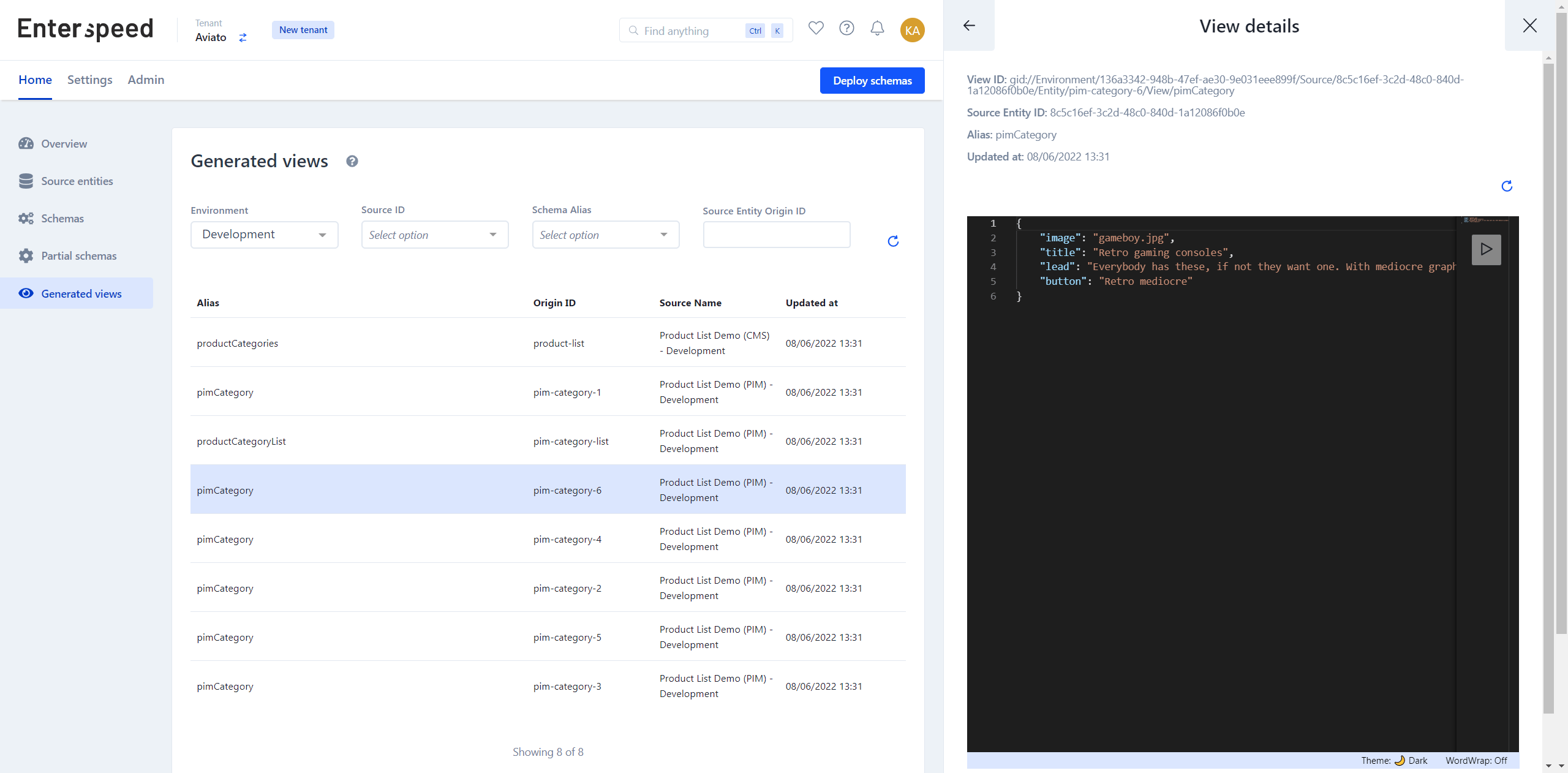
Now we are ready to deploy the schemas and make sure the output, is as expected.
Click on the "**Deploy changes**"-button in the top right corner. Choose your environment and click on the "**Deploy 3 changes**"-button.
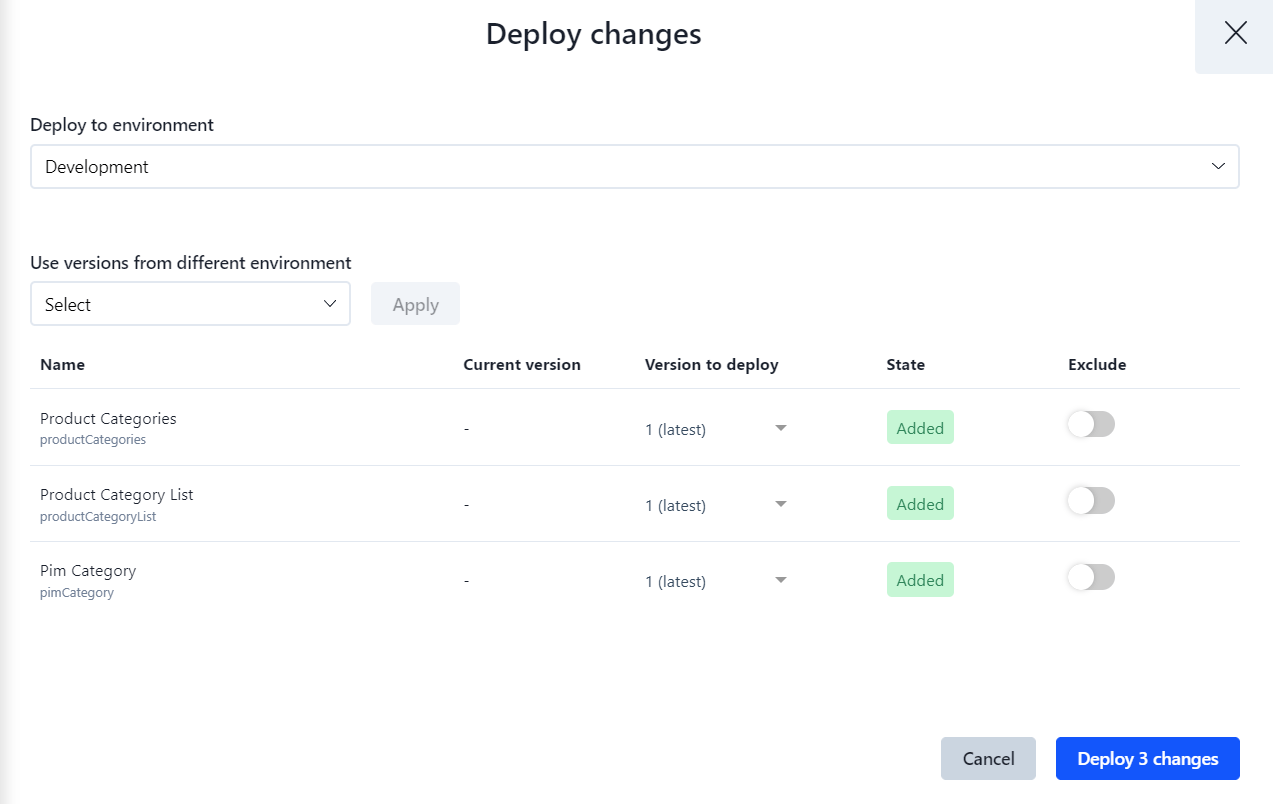 Once the changes have been deployed, you will be able to view them under **Generated Views**.